Why Does Google Chrome Use So Much RAM? (And How to Fix It in 2026)
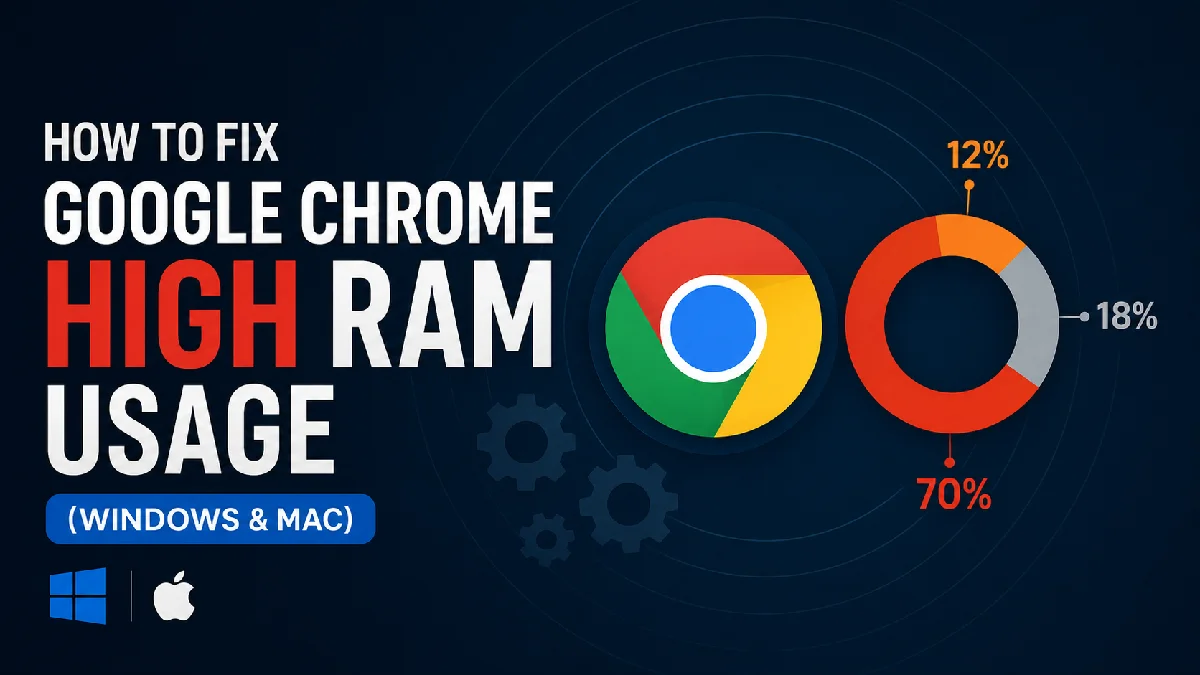
If Chrome high RAM usage is driving you crazy, you’re not alone. If you’ve ever opened Task Manager (Windows) or Activity Monitor (Mac) and seen Chrome eating 2GB+ of RAM with just 5 tabs open, you’re not alone. Chrome is designed to run each tab as a separate process — which makes it stable, but absolutely brutal on your memory.
Here’s how to fix it on both Windows and Mac:
Also check out Google Chrome vs RAM Memes
Fix 1: Reduce Chrome High RAM Usage with Memory Saver
Go to Chrome Settings → Performance → Memory Saver and turn it on. Chrome will automatically free up RAM from inactive tabs. This single setting can reduce memory usage by up to 40%.
Works identically on both Windows and Mac — this is your first and most important fix.
Fix 2: Kill Unused Extensions (Windows & Mac)
Type chrome://extensions in your address bar. Every extension eats RAM even when you’re not using it. Disable anything you don’t use daily.
Quick check: If Chrome uses 500MB with no tabs open, extensions are your problem.
Fix 3: Limit Open Tabs with OneTab (Windows & Mac)
Sounds obvious, but Chrome holds every tab in memory. Use OneTab (free Chrome extension) to collapse all tabs into one page – saving up to 95% RAM instantly.
Fix 4: Use Chrome’s Built-in Task Manager
Windows: Press Shift + Esc inside Chrome Mac: Go to Chrome menu → Window → Task Manager
You’ll see exactly which tab or extension is eating the most memory. Kill it directly without closing Chrome entirely.
Fix 5: Update Chrome (Windows & Mac)
Go to Chrome Settings → Help → About Google Chrome. Google constantly pushes memory optimization updates. Outdated Chrome = missing free performance fixes.
Fix 6: Increase Virtual Memory
Windows: Increase the paging file size in Control Panel → System → Advanced System Settings → Performance Settings → Advanced → Virtual Memory to give Chrome overflow space.
Mac: Mac manages virtual memory automatically, but you can help by:
- Closing unused apps running in background
- Going to Apple Menu → About This Mac → Storage → Manage and freeing up disk space — Mac uses free disk as virtual RAM swap
Fix 7: Reset Chrome Flags (Advanced)
Windows & Mac: Type chrome://flags in address bar and click Reset All at the top. Experimental flags can cause memory leaks over time – resetting clears them.
Fix 8: Create a New Chrome Profile
Windows & Mac: Go to Chrome Settings → You and Google → Add Person
A fresh profile has zero cached data and extensions. If your main profile feels sluggish, a new profile runs noticeably lighter – especially on older Macs with 8GB RAM.
Still not enough RAM? The truth is – if you’re running Chrome on 4GB RAM in 2026, no setting will fully fix it. Chrome is optimized for 8GB+. Consider upgrading RAM or switching to Arc Browser (Mac) or Microsoft Edge (Windows) – both are significantly more memory-efficient than Chrome.
Want to actually fix Chrome’s RAM problem? Check out → How to Fix Chrome High RAM Usage (Windows & Mac)
Don't Miss
Google Chrome vs RAM Memes: Funniest Memory Jokes (2026)

How to Remove Background in Photoshop: 6 Methods Tested on the Same Image

How to Make Advanced Hair Selections in Photoshop (Step-by-Step Guide)

How to Make Photoshop Run Faster (Even with 1000+ Layers)
How to Reduce Photoshop File Size Without Losing Quality