How to Reduce Photoshop File Size Without Losing Quality
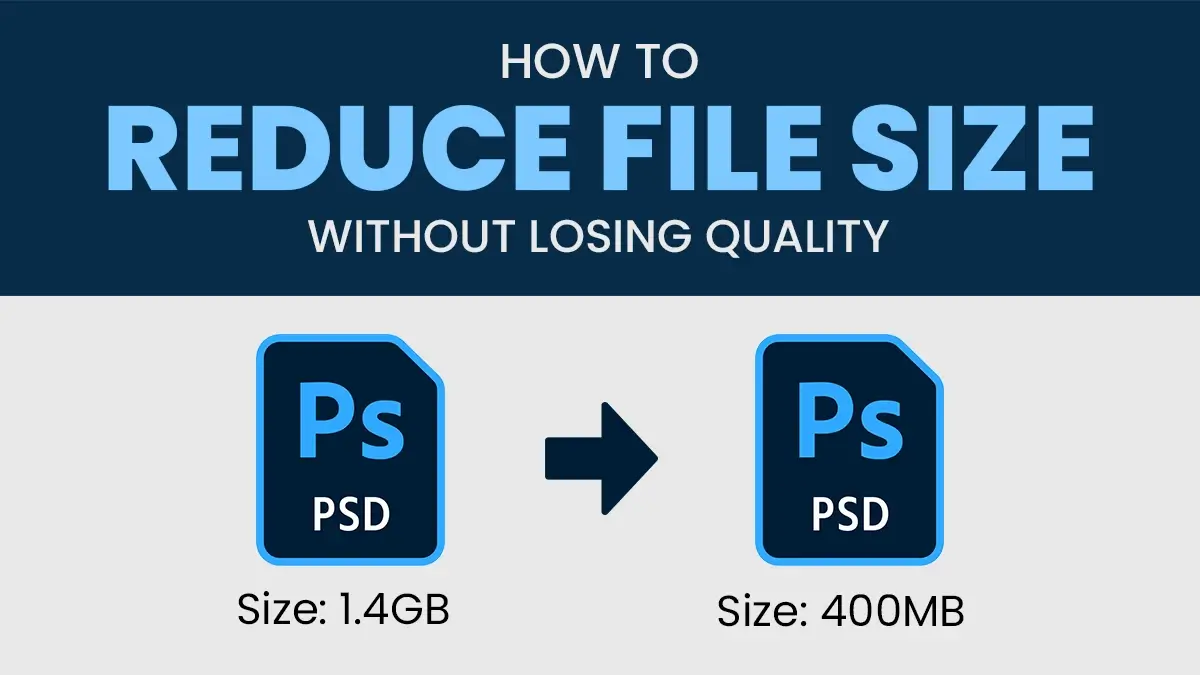
If your Photoshop file has grown so large it takes forever to save, this guide will show you how to reduce Photoshop file size without losing a single pixel of quality.
Large PSD files are one of the most common frustrations for designers and photographers. A file that started as a clean 50MB layout can balloon to 500MB or more after a few rounds of edits – and most of that extra bulk is invisible junk you don’t need.
The good news is that reducing Photoshop file size is straightforward once you know where to look. These four methods cover every major cause of oversized PSD files.
Method 1: Optimize Layers and Smart Objects
Layers are the number one reason Photoshop files get oversized. Every hidden layer, unused Smart Object, and unapplied mask stores full image data in your file – even if you never see it.
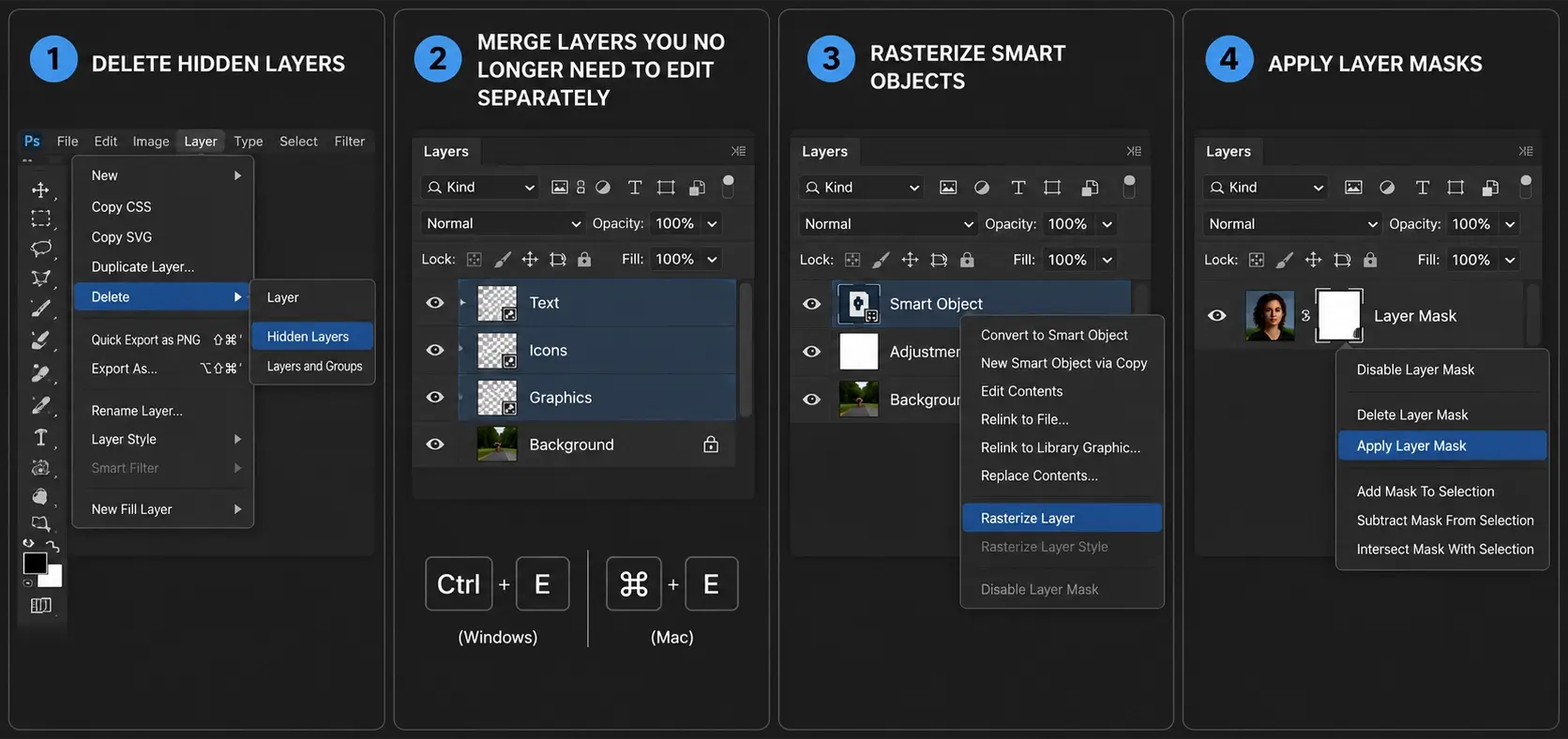
Delete hidden layers Go to Layer > Delete > Hidden Layers to remove any draft layers you’ve been building up during your work session. These are easy to forget but can add hundreds of megabytes to your file.
Merge layers you no longer need to edit separately Select the layers and press Cmd + E (Mac) or Ctrl + E (Windows) to merge them. Merged layers are flattened into a single layer, which takes up far less space than storing each layer individually.
Rasterize Smart Objects Smart Objects are convenient for non-destructive editing, but they store a hidden copy of the original file inside your PSD. Right-click any Smart Object in the Layers panel and select Rasterize Layer to convert it back to a standard layer. This alone can dramatically reduce your file size.
Apply Layer Masks If you have finalized layer masks that you no longer need to adjust, right-click the mask thumbnail and select Apply Layer Mask. Unapplied masks store extra pixel data that gets written to your file every time you save.
Method 2: Trim and Crop Hidden Data
One of the most overlooked causes of large Photoshop files is data that exists outside your canvas. Layers that extend beyond your document boundaries still store every pixel, even the parts you cannot see.
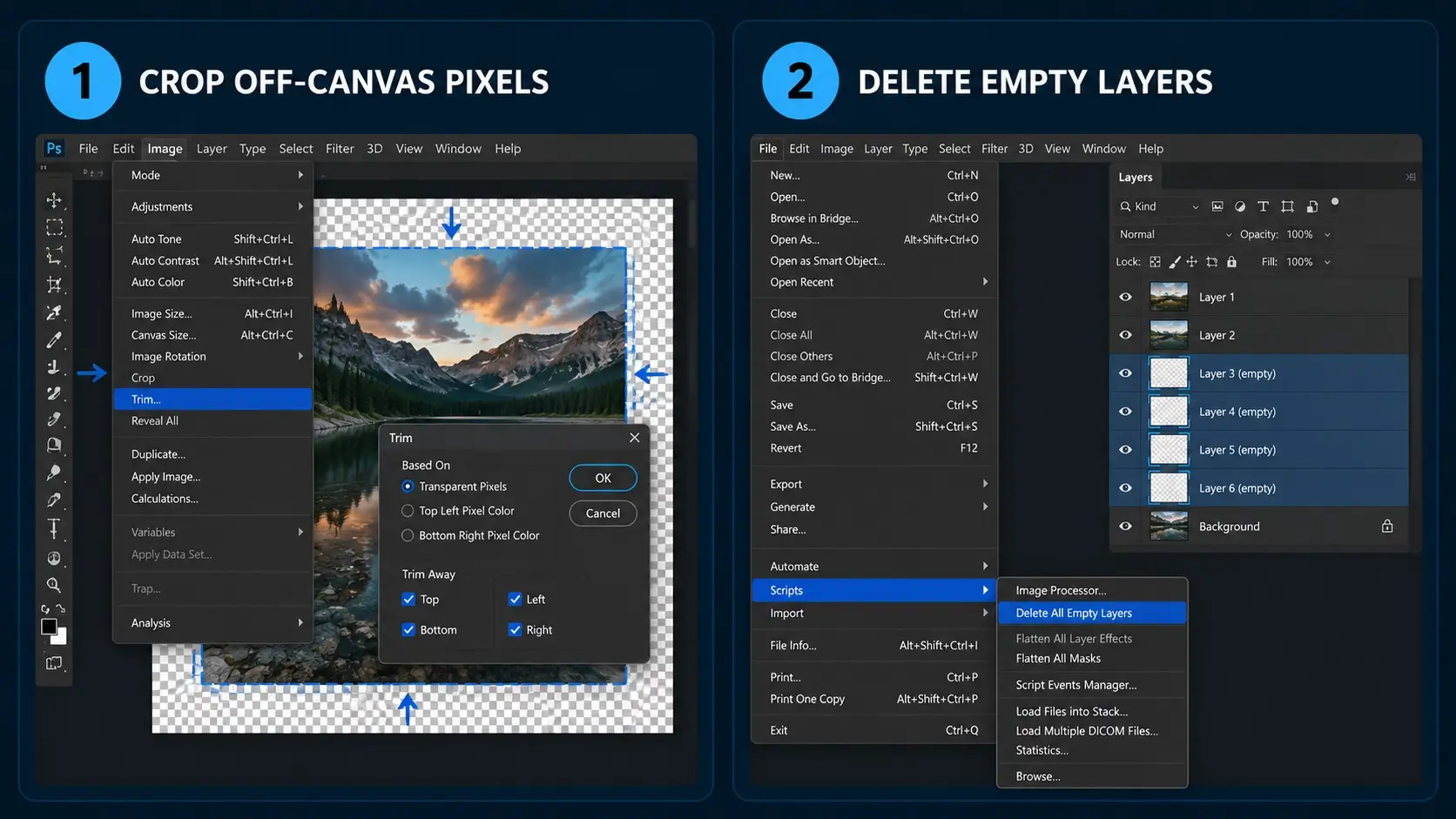
Crop off-canvas pixels Go to Image > Trim, select Transparent Pixels, and click OK. This removes all pixel data that extends beyond the edges of your canvas. If you have multiple layers with off-canvas content, this can reduce your file size significantly.
Delete empty layers Go to File > Scripts > Delete All Empty Layers to strip out any blank layers that accumulated during your project. Empty layers might seem harmless, but they still add metadata and preview data to your file.
Method 3: The White Layer Trick (Our Favorite Hack)
This is our favorite trick for reducing PSD file size instantly – and most designers have never heard of it.
When you save a PSD file, Photoshop generates a high-quality flattened preview image that gets embedded inside the file. This preview is what you see when browsing files in Finder, Windows Explorer, or Adobe Bridge. The problem is that this preview can be enormous, especially for complex layered files with high-resolution content.
Here’s the trick: place a solid white fill layer at the very top of your layer stack before saving.
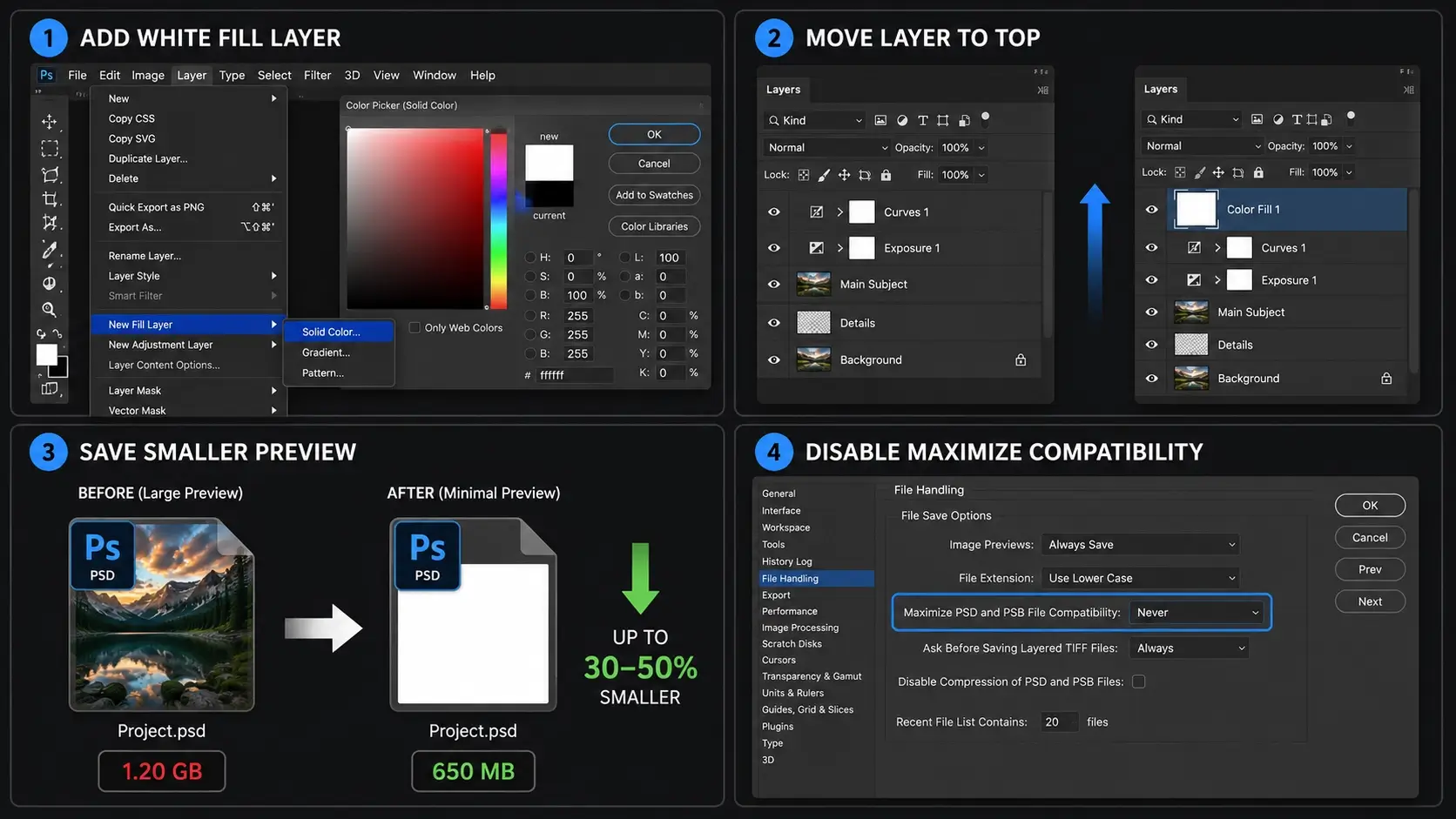
Go to Layer > New Fill Layer > Solid Color, set the color to white, and move this layer to the top of your Layers panel. When Photoshop generates the file preview, it sees a flat white canvas at the top and generates a minimal preview instead of rendering all your complex layers.
After saving, you can hide or delete this white layer for continued editing. The actual layer data in your file is completely unaffected – only the preview shrinks.
Disable Maximize Compatibility for even better results Go to Photoshop > Preferences > File Handling (Mac) or Edit > Preferences > File Handling (Windows). Find Maximize PSD and PSB File Compatibility and set it to Never.
Maximize Compatibility stores a flattened composite of your entire document inside the file so that older versions of Photoshop and other applications can read it. Unless you specifically need compatibility with older software, disabling this can cut your PSD file size by 30 to 50 percent.
Method 4: Adjust Document Settings
Sometimes the most direct way to reduce Photoshop file size is to change the document settings themselves.
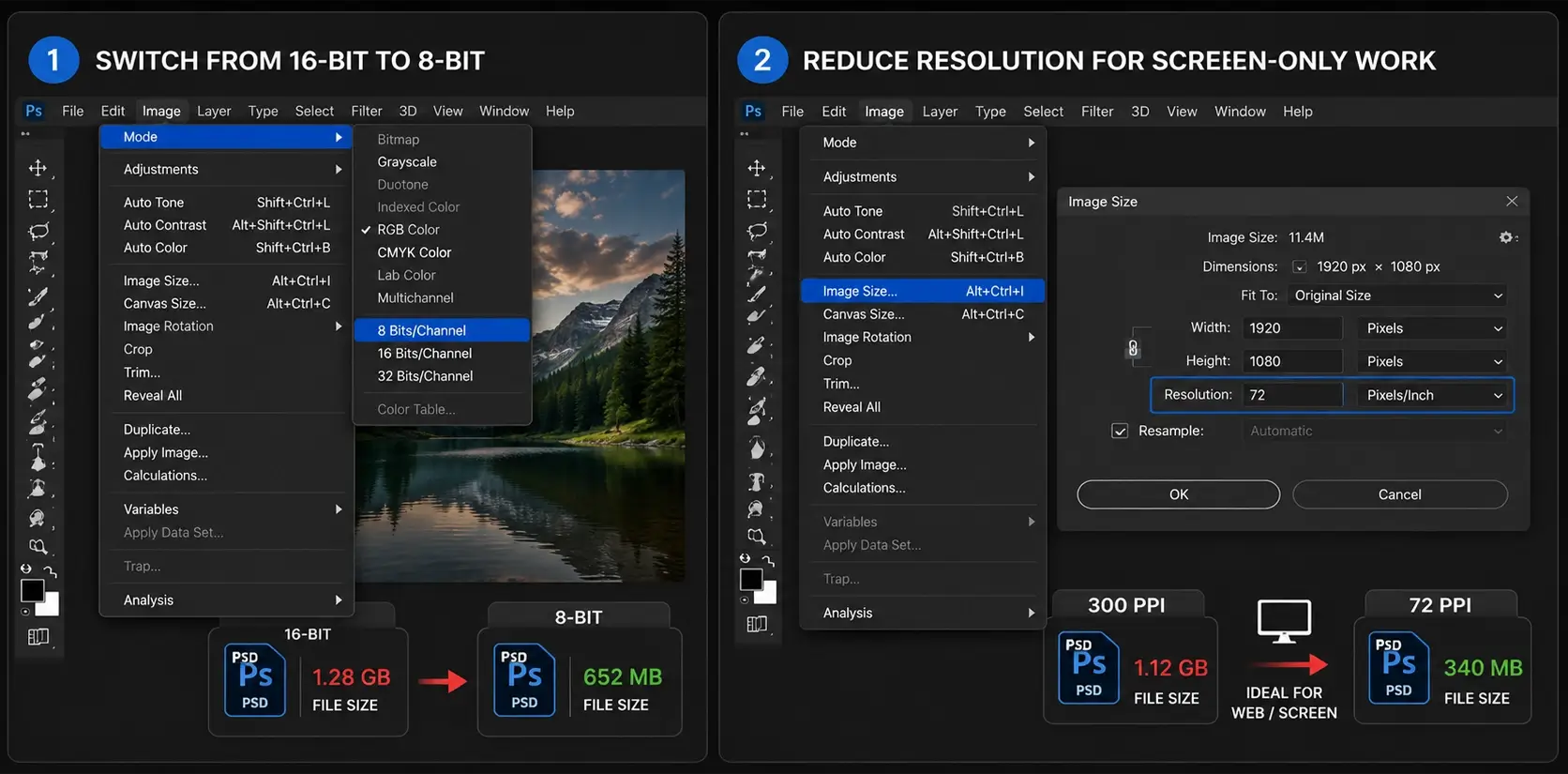
Switch from 16-bit to 8-bit If your file is set to 16-bit or 32-bit color mode, switch to 8-bit by going to Image > Mode > 8 Bits/Channel. Most digital design work does not require 16-bit precision. Switching to 8-bit cuts the raw data size of every layer in half.
Reduce resolution for screen-only work If your document is intended for web or screen use, you do not need 300 PPI. Go to Image > Image Size, uncheck Resample, and reduce the resolution to 72 PPI or 96 PPI. This reduces the amount of data Photoshop has to store without changing the visible dimensions of your document.
Trying to save space on Image files, but not compromise quality? Know Your File Types: When to use JPEG, GIF & PNG
Quick Reference: Which Method to Use
| Problem | Solution |
|---|---|
| Too many old layers | Delete hidden layers + merge |
| Smart Objects bloating file | Rasterize Smart Objects |
| File preview is huge | White layer trick + disable Maximize Compatibility |
| Working in 16-bit unnecessarily | Switch to 8-bit |
| Off-canvas content | Image > Trim |
| File for screen use only | Reduce to 72 PPI |
FAQ
The most common causes are Smart Objects storing hidden source data, a large embedded file preview generated by Maximize Compatibility, hidden layers that were never deleted, and off-canvas pixel data extending beyond your document edges.
Use the methods in this guide — delete hidden layers, rasterize Smart Objects, apply layer masks, disable Maximize Compatibility, and use the white layer trick. None of these methods remove actual image data or reduce the quality of your artwork.
Only if you need to open the file in very old versions of Photoshop (CS2 and earlier) or in applications that cannot render layered PSD files. For modern workflows, disabling it is safe and significantly reduces file size.
Adding a solid white fill layer at the top of your layer stack forces Photoshop to generate a minimal file preview when saving, instead of rendering a full-resolution composite of all your layers. It is one of the fastest ways to reduce PSD file size instantly.
All four methods in this guide reduce file size while keeping your layers fully intact and editable.
Results vary depending on the file, but disabling Maximize Compatibility alone typically reduces file size by 30 to 50 percent. Combining all four methods can often reduce a 500MB file to under 100MB without any loss of quality.
Don’t Miss
- How to Make Photoshop Run Faster, Even with 1000+ Layers
- How to Sharpen Blurry Images in Photoshop: 3 Methods That Work
- 28 Hidden Photoshop Tips and Tricks
- 15+ Best Photoshop Hacks You Need to Know
Don't Miss
Why you’re not using these 15 amazing Photoshop shortcuts yet?
Top Hidden Features of Photoshop, You Are Not Using
15+ Best Photoshop Hacks You Need to Know
How to Change Color in Photoshop of Anything
28 Photoshop Tricks, Tips & Powerful hidden feature for Beginner