How to Make Photoshop Run Faster (Even with 1000+ Layers)

If you’re wondering how to make Photoshop run faster, you’re not alone. If Photoshop is running slow, lagging on every brush stroke, or crawling through saves, you don’t need a new computer — you need the right settings.
This guide shows exactly how to make Photoshop run faster using proven performance tweaks, hardware optimization, and workflow improvements. Whether you’re working on large PSD files or trying to make Photoshop run faster on an older system, these tips can dramatically improve responsiveness.
You’ll learn how to make Photoshop run faster with RAM allocation, scratch disk settings, GPU acceleration, cache optimization, and a Smart Object workflow that keeps even 1000+ layer documents running smoothly.
How to Make Photoshop Run Faster: 4 Settings to Change Right Now
Before diving into advanced methods, these four changes take under two minutes and will immediately speed up Adobe Photoshop on most machines.
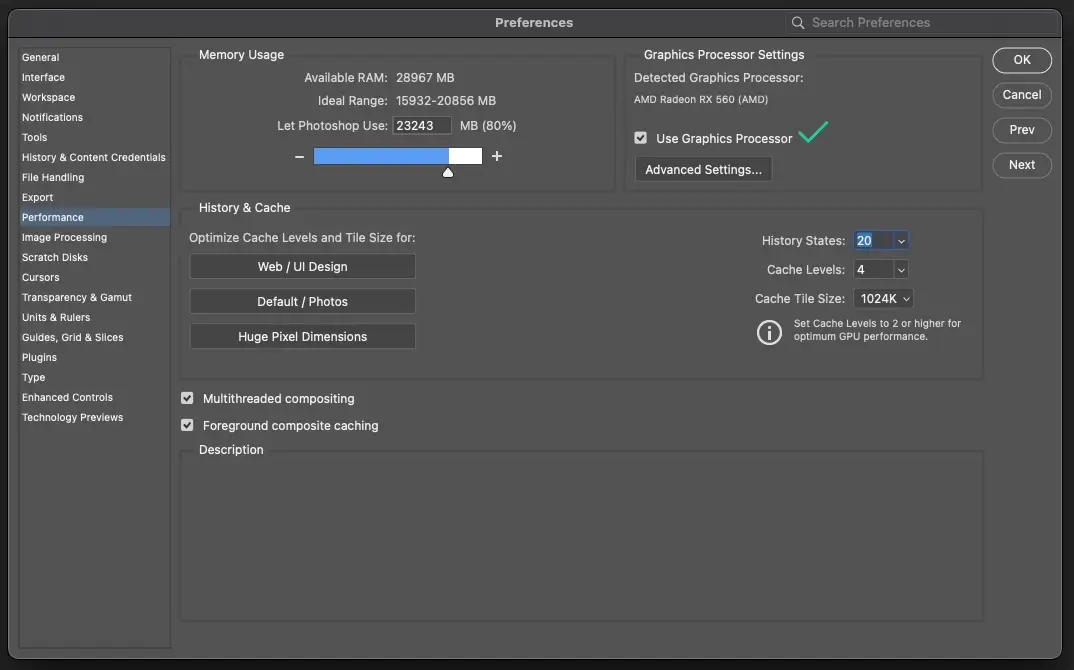
Go to Edit > Preferences > Performance (Windows – Ctrl + K) or Photoshop > Settings > Performance (Mac – Cmd + K):
1. Increase RAM Allocation to Make Photoshop Run Faster
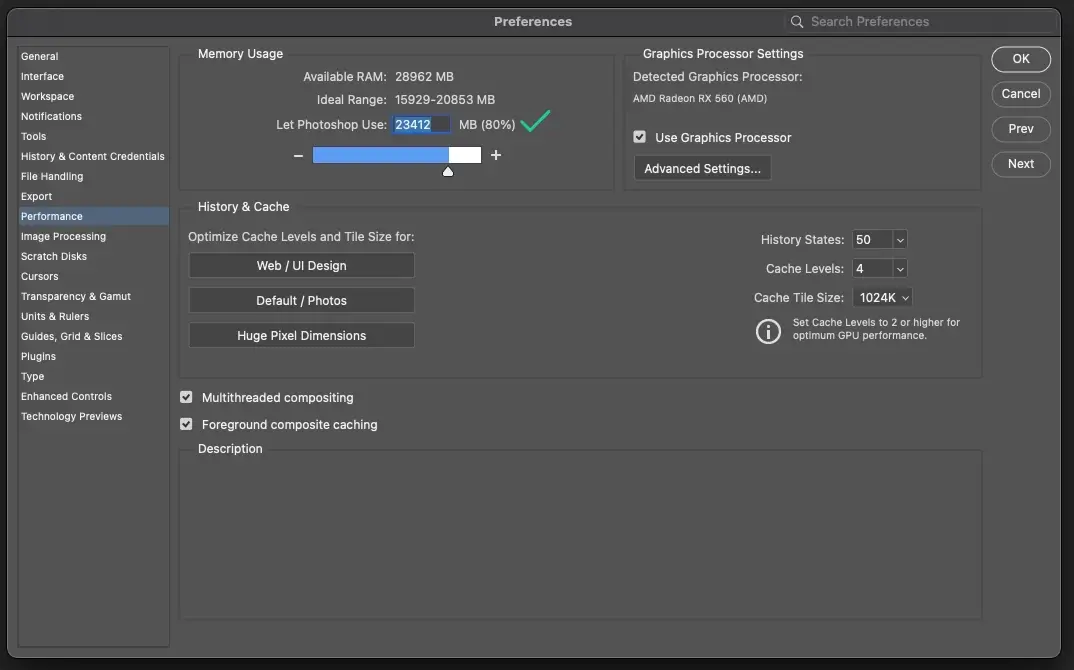
Increase RAM allocation to 70–80% Under Memory Usage, drag the slider to 70–80% of your available RAM. Photoshop defaults to a conservative amount – giving it more memory is the single fastest way to reduce lag.
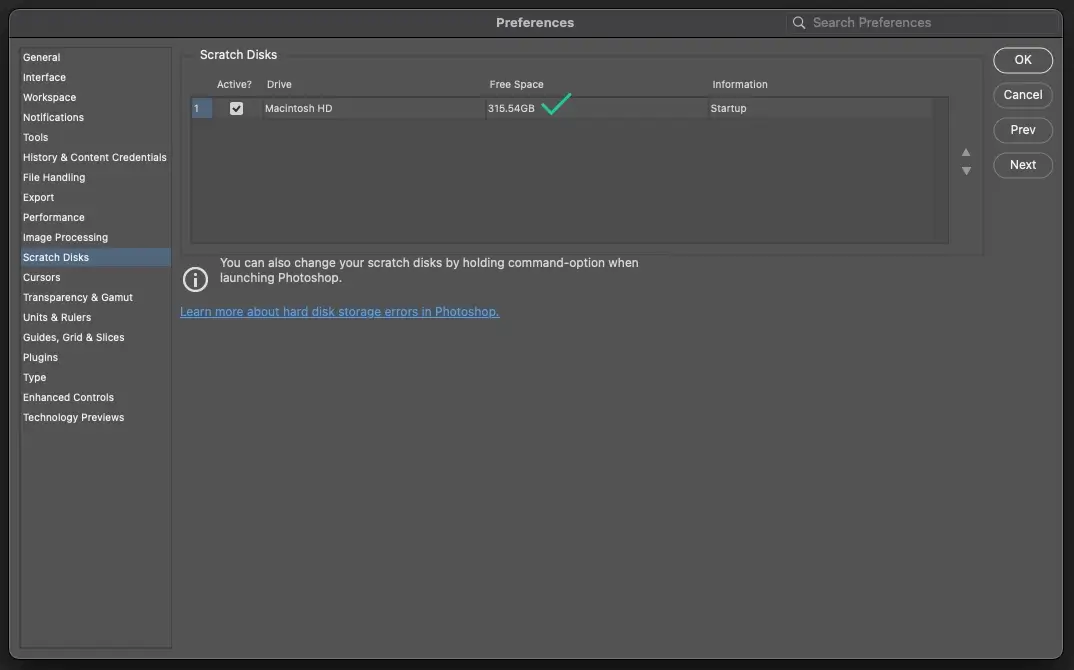
2. Set Your Scratch Disk for Better Photoshop Performance
Set your scratch disk to your fastest drive Under Scratch Disks, make sure your primary scratch disk is your fastest internal drive – ideally an NVMe SSD with at least 100GB of free space. If Photoshop runs out of RAM, it uses the scratch disk as overflow. A slow scratch disk means Photoshop grinds to a halt.
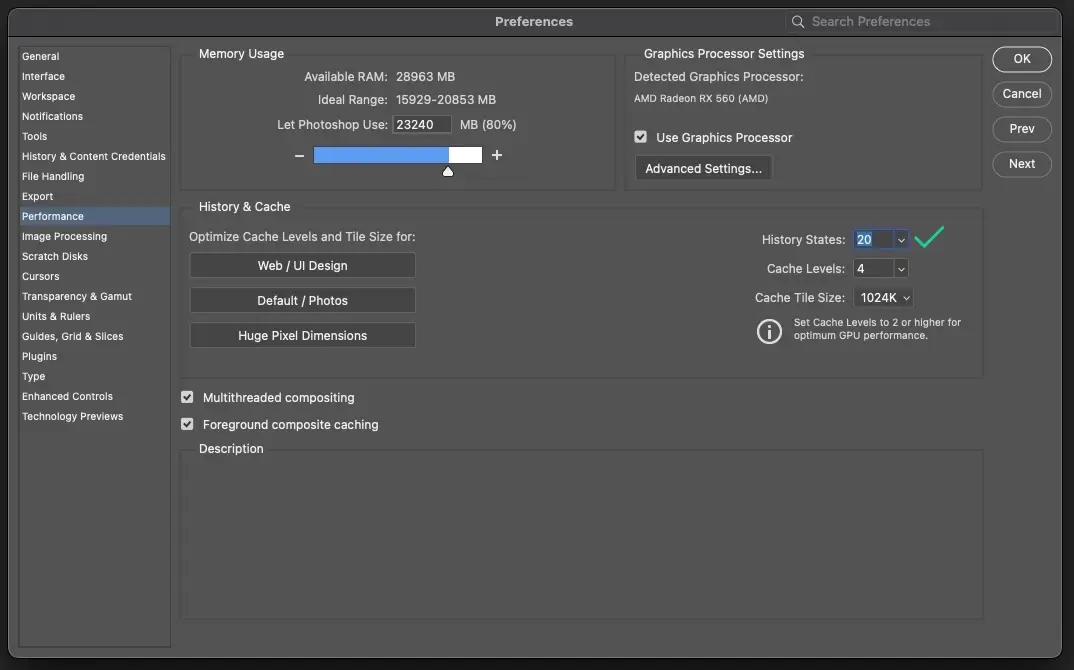
3. Reduce History States to Make Photoshop Run Faster
Reduce History States to 20–30 Under History & Cache, lower your History States from the default 50 down to 20 or 30. Every history state stores a full snapshot of your document in RAM. 50 states on a 500MB file means Photoshop is holding 25GB of history data in memory.
4. Enable GPU Acceleration for Faster Photoshop Performance
Enable GPU acceleration Under Graphic Processor Settings, make sure Use Graphics Processor is checked. Click Advanced Settings and enable Use OpenCL. This offloads canvas rendering from your CPU to your GPU, which dramatically speeds up zooming, rotating, and brush strokes.
Method 1: Make Photoshop Run Faster with the 1000+ Layer Smart Object Hack
This is the most powerful fix for anyone working with massive layered files – and most designers don’t know it exists.
When you have hundreds or thousands of layers, Photoshop has to keep track of every single one while you work. Every brush stroke, every transformation, every filter preview forces Photoshop to recalculate the entire layer stack. That’s why 1000+ layer files feel like working through wet concrete.
Convert Multiple Layers into a Single Smart Object
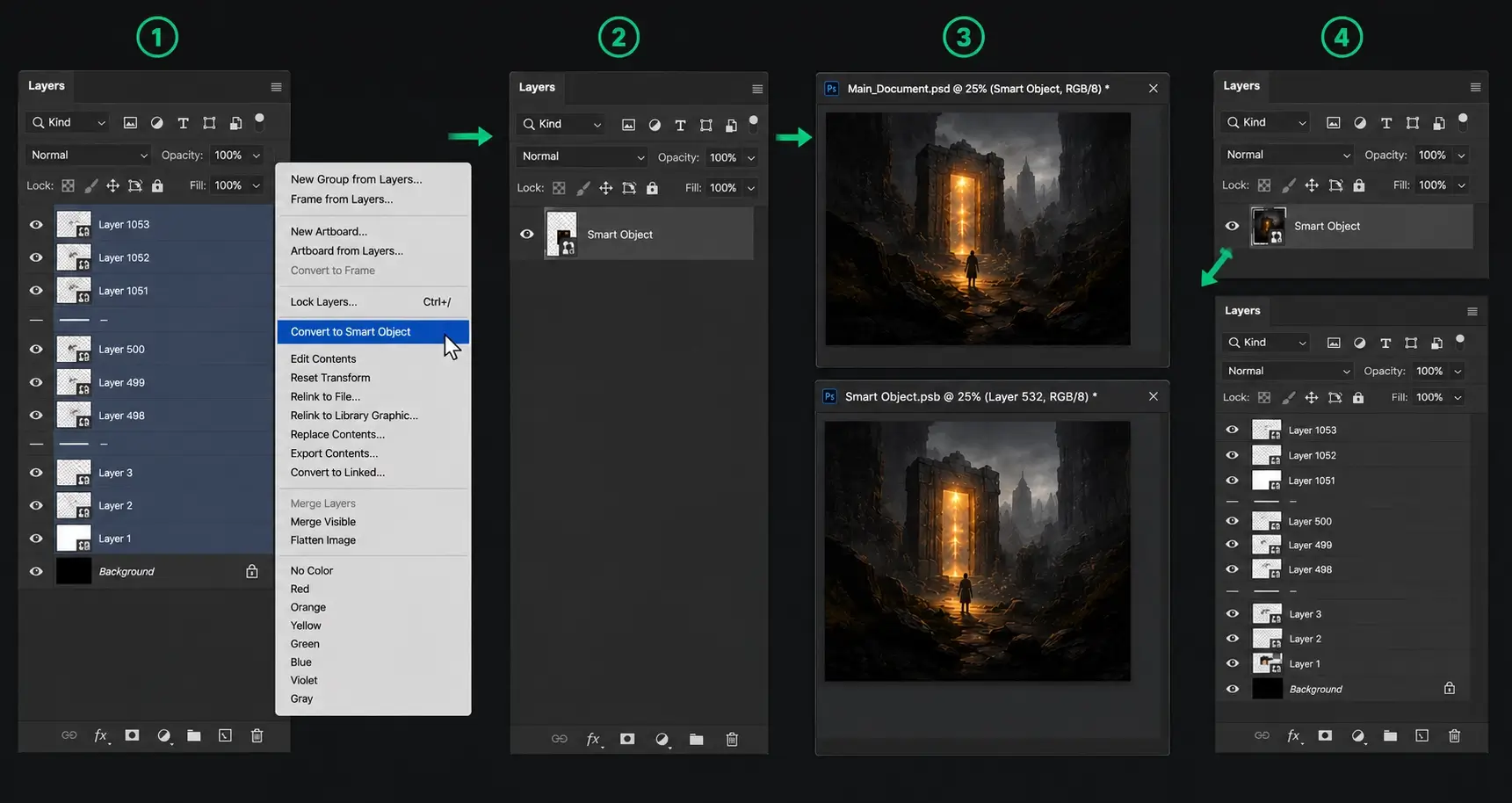
Convert your layers into a single Smart Object Select all your heavy layers, right-click, and choose Convert to Smart Object. Photoshop now treats the entire stack as one single, flat layer. Canvas performance becomes instantly smooth because Photoshop only has to render one layer instead of a thousand.
The best part: your layers aren’t gone. Double-click the Smart Object thumbnail to open a temporary .psb file where all your original layers are fully intact and editable. Make your changes, save the .psb tab, and your main document updates automatically.
This workflow gives you the best of both worlds – fast canvas performance when you don’t need to edit individual layers, and full non-destructive access when you do.
Method 2: Advanced Photoshop Performance Settings for Large Documents
Beyond the quick settings above, these additional preferences give you more control over how Photoshop uses your hardware.
1. Adjust Cache Levels for Faster Screen Redraws
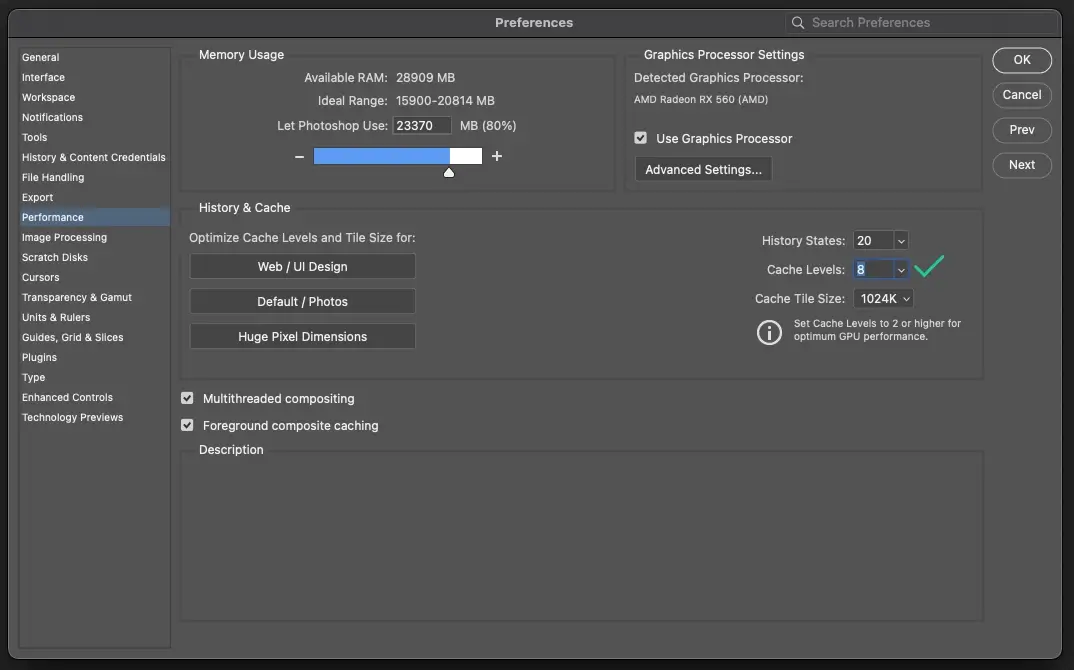
Lower Cache Levels for large documents In Edit > Preferences > Performance, under History & Cache, you’ll see Cache Levels (default is 4). If you work with large, high-resolution documents, increase this to 6 or 8. If you work with many small documents, keep it at 2. Higher cache levels speed up screen redraws on large files.
2. Optimize Cache Tile Size for Large Photoshop Files
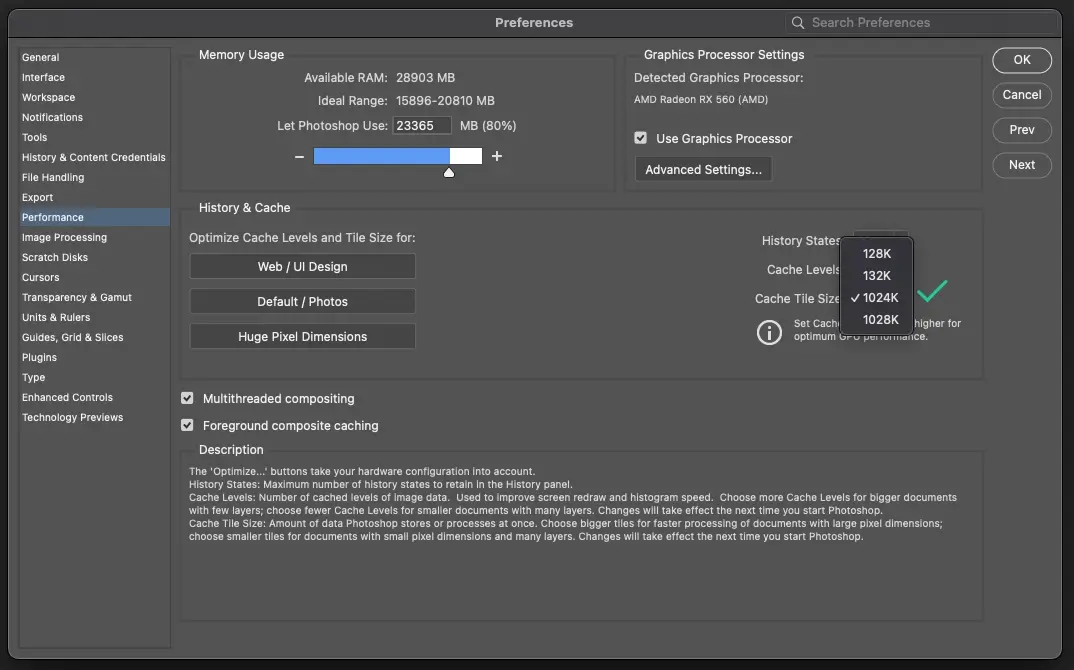
Set Cache Tile Size to 1024K Also under History & Cache, set the Cache Tile Size to 1024K if you’re working on large files. This tells Photoshop to process bigger chunks of data at once, which reduces the number of read/write operations on your scratch disk.
3. Purge Photoshop Cache to Free Memory
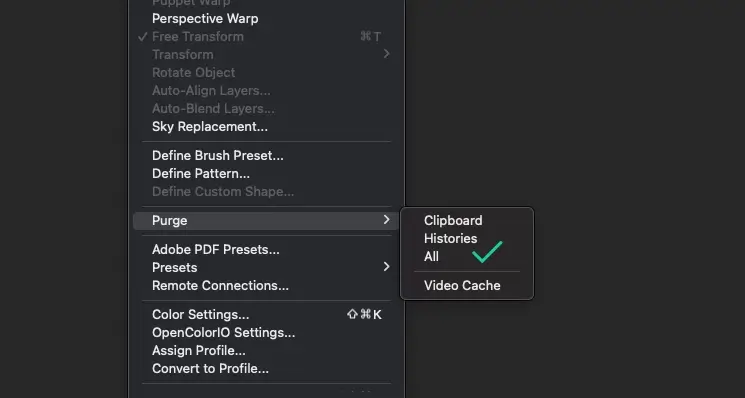
Purge cache regularly during long sessions Go to Edit > Purge > All to clear your Clipboard, History, and Video Cache mid-session. This instantly frees up RAM without restarting Photoshop. Do this whenever you notice things getting sluggish after a long work session.
Method 3: Workflow Changes That Make Photoshop Run Faster
Sometimes the slowdown isn’t in the settings – it’s in how the file itself is built. These habits keep Photoshop fast throughout a project.
1. Avoid Deeply Nested Layer Groups
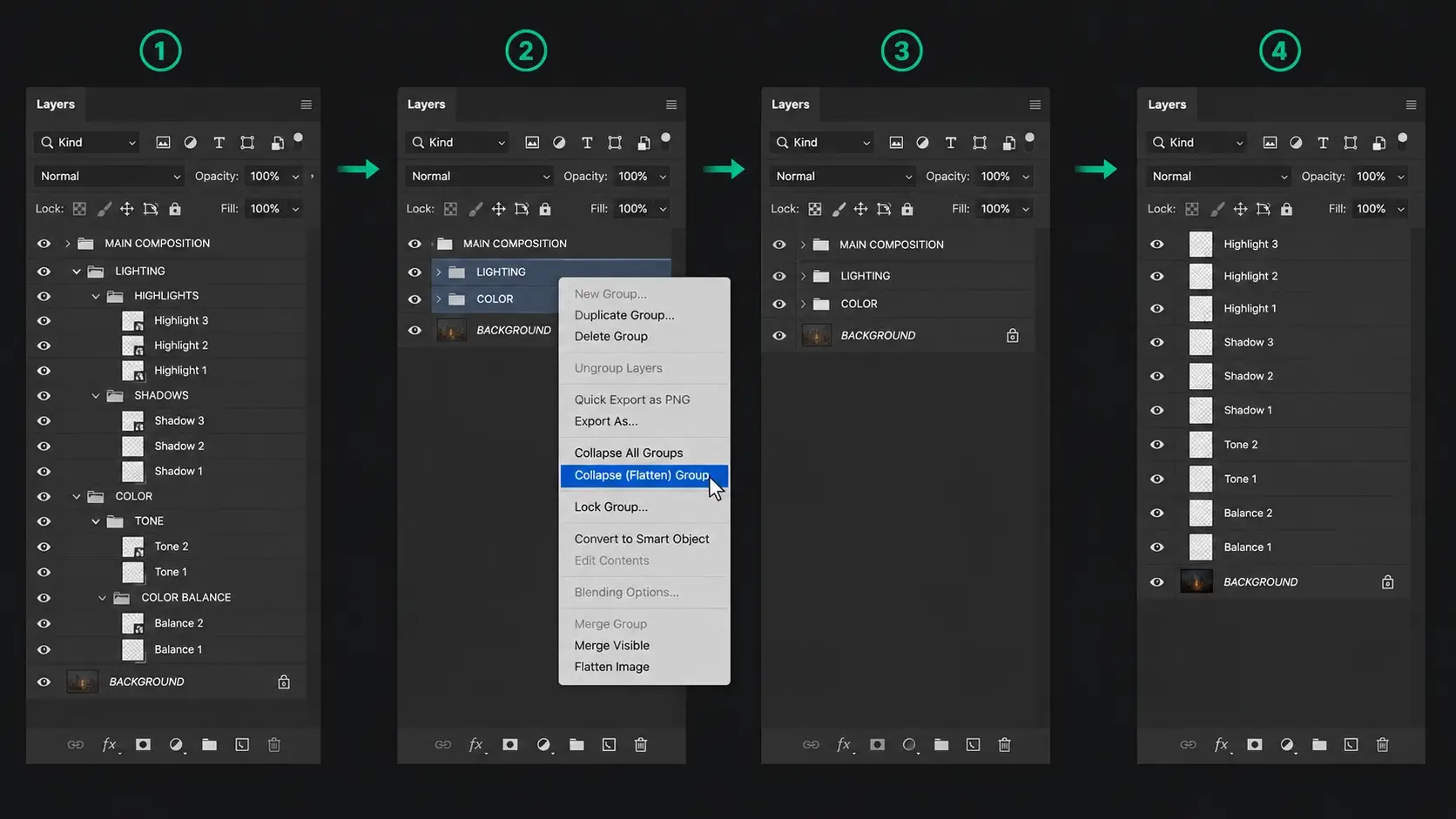
Avoid deeply nested layer groups Folders inside folders inside folders force Photoshop to render nested composites at every level. Flatten layer groups where they no longer need to be separated. This alone can significantly speed up screen redraws on complex files.
2. Turn Off Live Previews During Heavy Editing
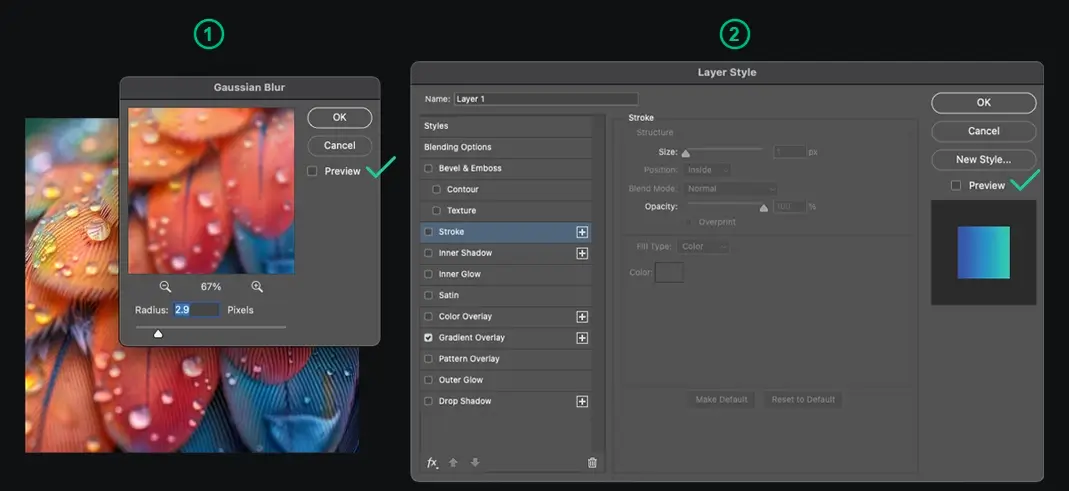
Turn off live previews while painting or transforming Live previews on Layer Styles, blending modes, and filters force Photoshop to recalculate the entire canvas composition in real time as you move sliders. Turn off live previews when doing heavy editing – apply the setting, then check the result.
3. Hide Guides and Extras for Better Performance
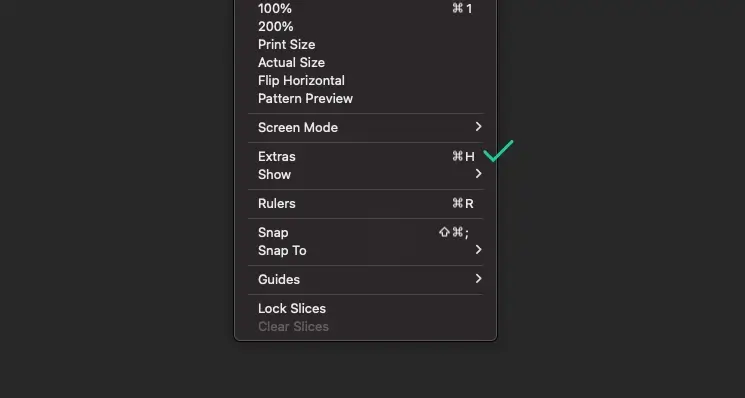
Hide rulers and guides while working Press Ctrl + H (Windows) or Cmd + H (Mac) to hide guides and overlays while painting or retouching. Visible guides force Photoshop to calculate vector snap points on every canvas interaction.
4. Use Linked Smart Objects for External Assets
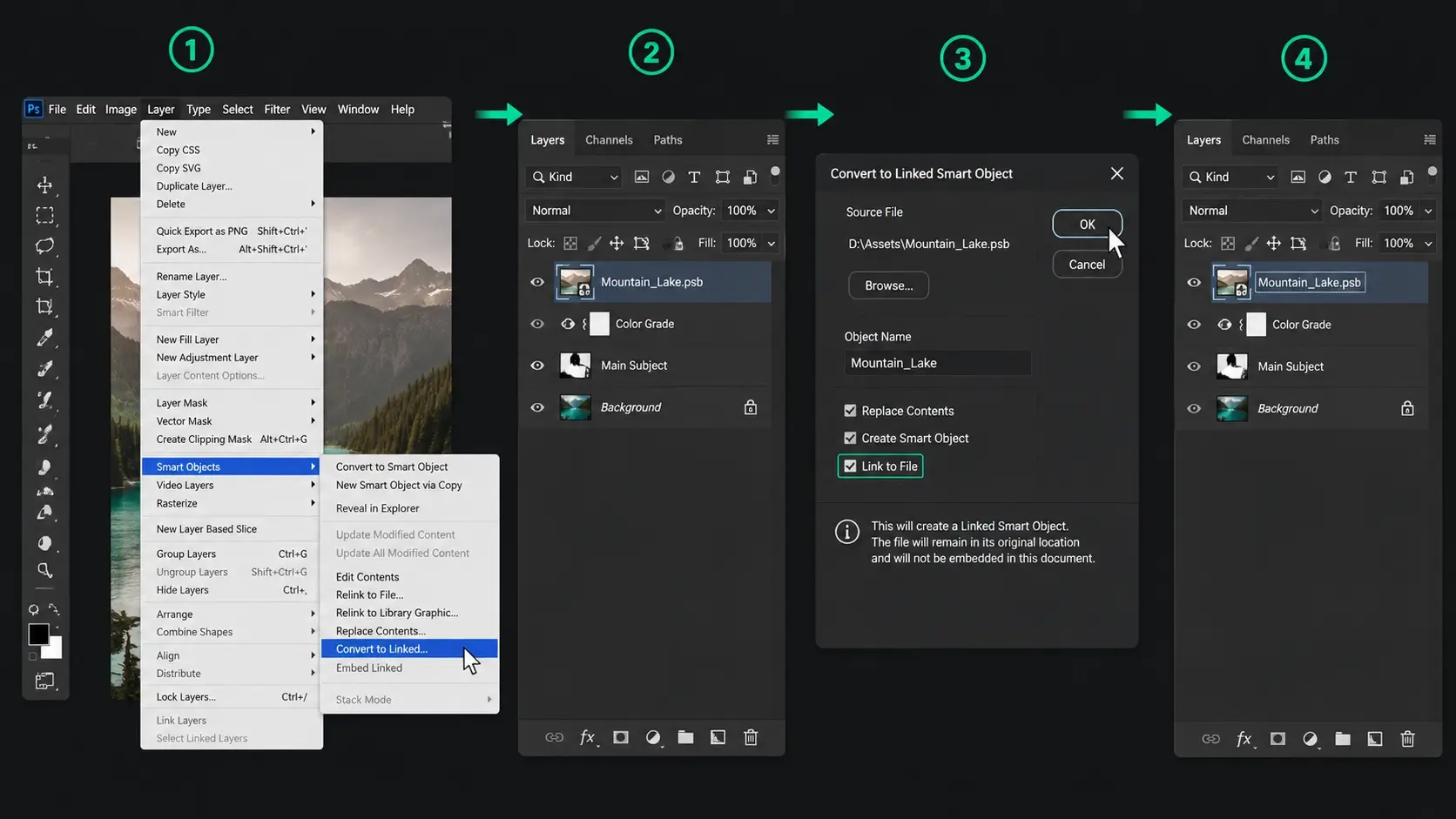
Use Linked Smart Objects for external assets If your file references large external assets, convert them to Linked Smart Objects via Layer > Smart Objects > Convert to Linked. This keeps the asset stored externally so Photoshop doesn’t have to load it into RAM with the main document.
Method 4: File Cleanup Tips to Make Photoshop Run Faster
1. Remove Unused Photoshop Presets
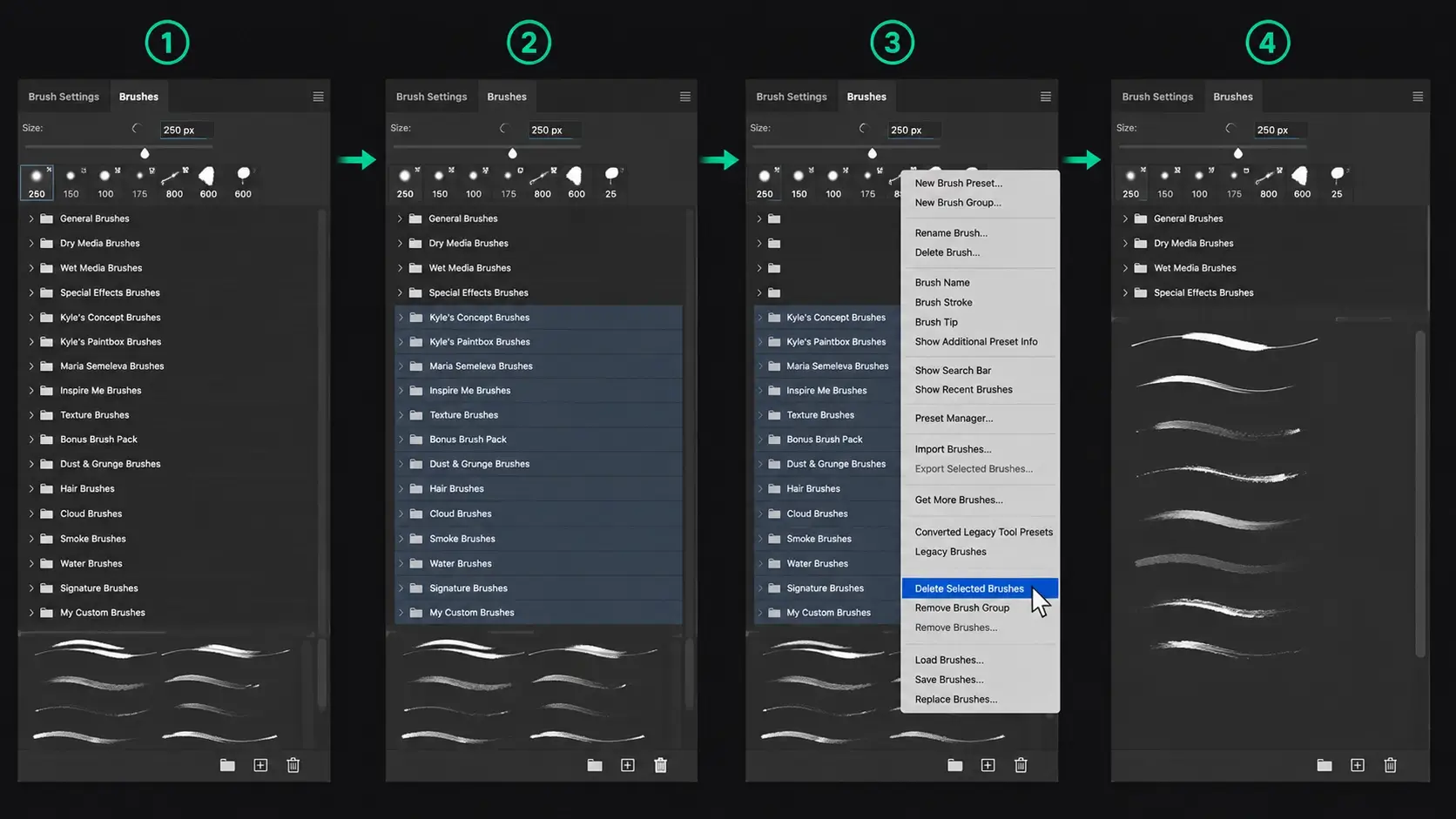
Keep your Preset library lean Photoshop loads every installed brush, font, pattern, and gradient into memory at startup. If you’ve downloaded dozens of brush packs and font sets over the years, Photoshop is carrying all of that dead weight on every launch. Keep only the presets you actually use – remove the rest. Your startup time and overall performance will both improve.
2. Apply or Delete Finished Layer Masks
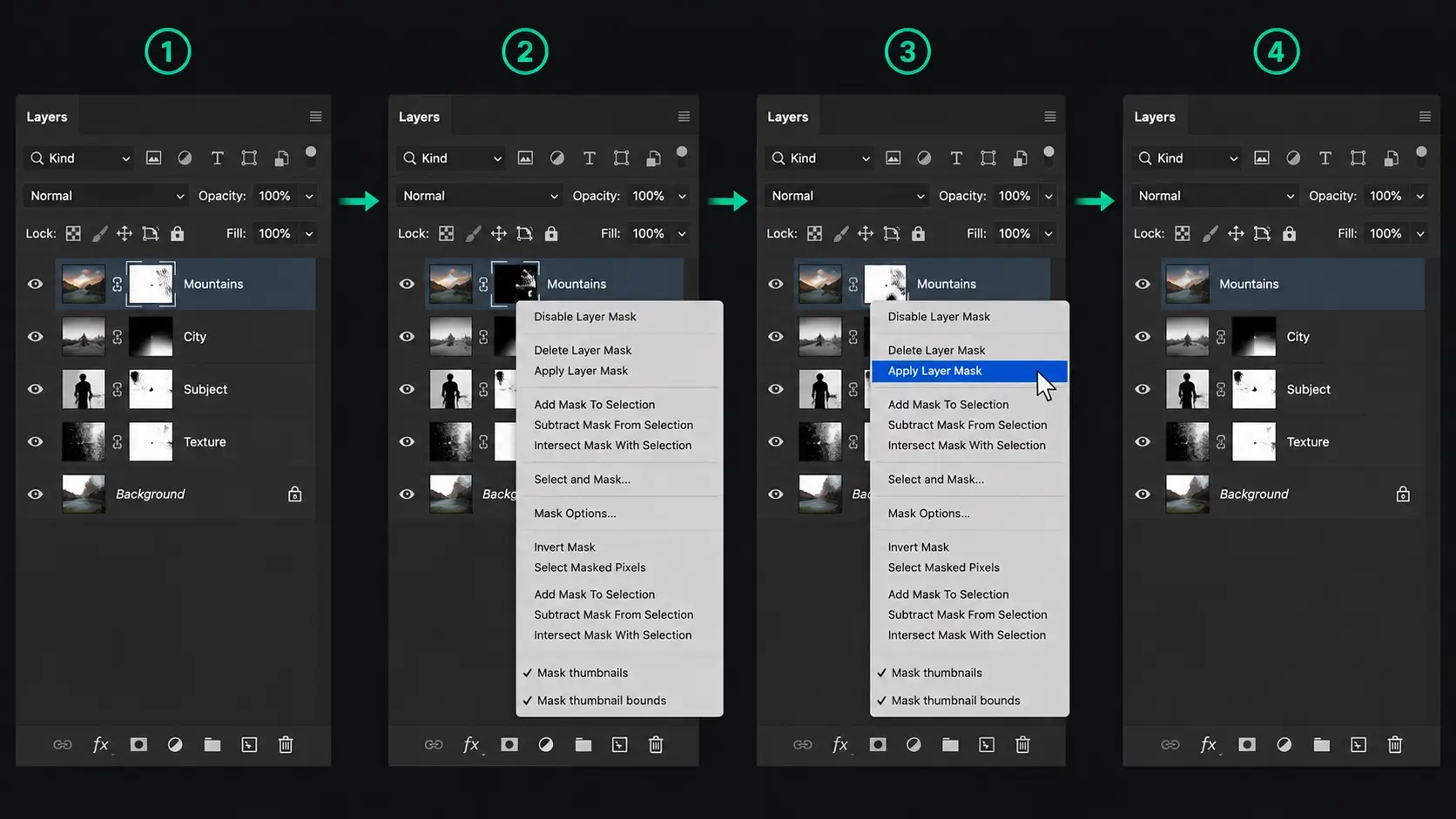
Apply or delete masks you’re done with Unapplied layer masks store extra pixel data and add to the composite Photoshop has to calculate on every screen redraw. Right-click any finalized mask and select Apply Layer Mask to flatten it into the layer.
3. Switch to 8-Bit Mode for Better Photoshop Performance
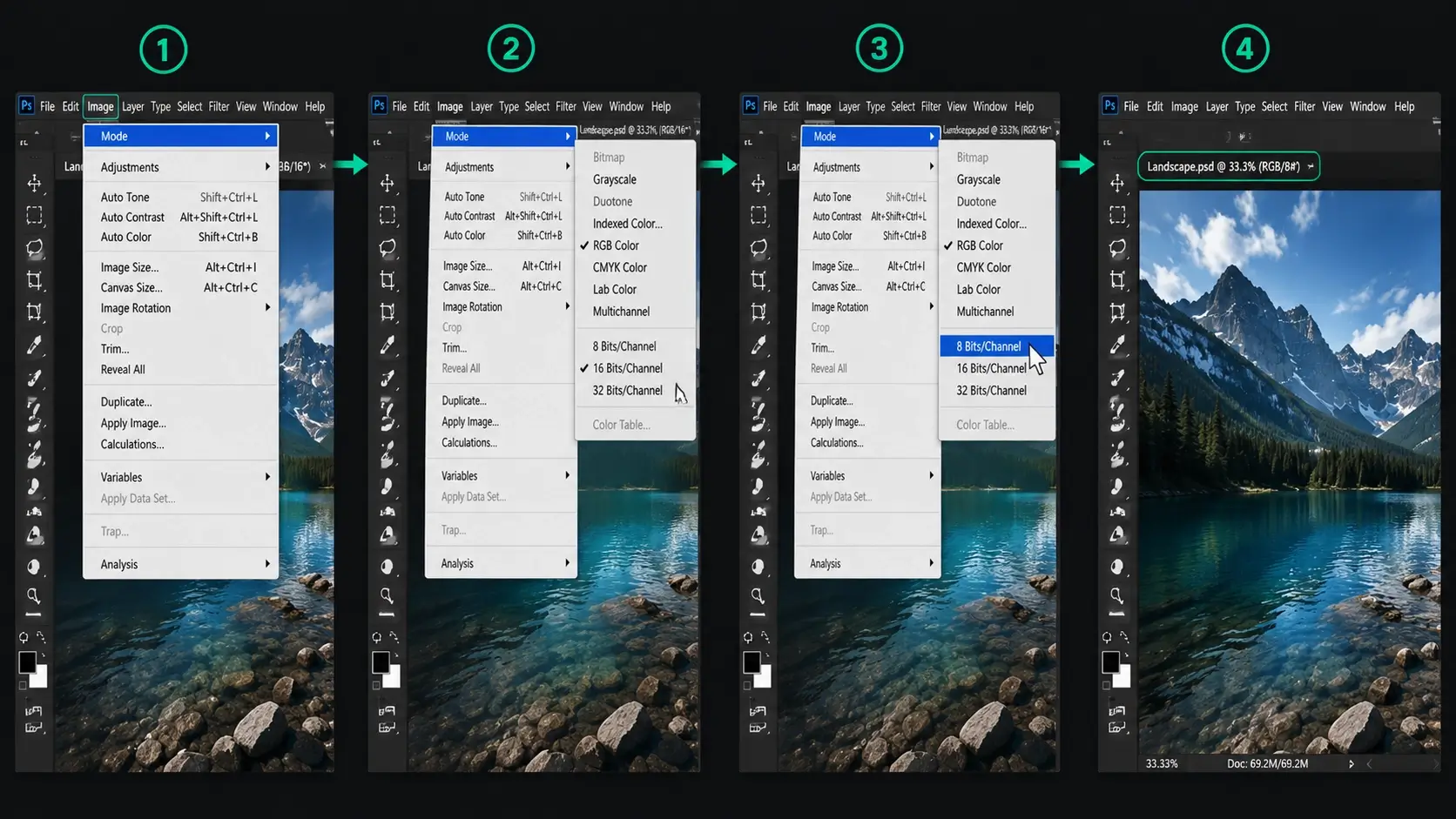
Work in 8-bit unless you specifically need 16-bit 16-bit documents store twice as much data per layer as 8-bit. Unless you’re doing heavy color grading or professional print work that requires 16-bit precision, switch to 8-bit via Image > Mode > 8 Bits/Channel. Every operation – brushes, filters, transforms – runs faster on an 8-bit document.
Quick Reference: What’s Slowing Down Photoshop
| Symptom | Fix |
|---|---|
| Lag on every brush stroke | Increase RAM to 70–80%, enable GPU |
| Slow saves | Set scratch disk to NVMe SSD |
| 1000+ layer file crawling | Smart Object hack |
| Slow after long session | Edit > Purge > All |
| Slow canvas redraws | Reduce nested layer groups |
| Slow startup | Remove unused brushes and presets |
| Heavy file with external assets | Convert to Linked Smart Objects |
FAQ
The most common causes are insufficient RAM allocation, a slow scratch disk, too many History States stored in memory, GPU acceleration disabled, and oversized files with hundreds of unoptimized layers. Fixing these issues can help make Photoshop run faster and improve overall responsiveness.
Go to Edit > Preferences > Performance and increase RAM allocation to 70–80%, set your scratch disk to your fastest SSD, lower History States to 20–30, and enable GPU acceleration. These four changes alone will noticeably speed up Photoshop on most machines.
Select all your layers, right-click, and choose Convert to Smart Object. Photoshop treats the entire stack as one flat layer, which makes canvas performance immediately smooth. You can still edit the original layers by double-clicking the Smart Object thumbnail.
70–80% of your total system RAM is the recommended range. Going above 85% can cause instability because your operating system needs RAM to run as well. Proper RAM allocation is one of the easiest ways to make Photoshop run faster.
The scratch disk is a designated drive that Photoshop uses as overflow memory when your RAM is full. It should always be your fastest available drive – an internal NVMe SSD is ideal. Avoid using external drives or the same drive as your operating system if possible.
Yes significantly. With GPU acceleration enabled, Photoshop offloads canvas rendering, zoom, rotation, and certain filters to the GPU instead of the CPU. This speeds up nearly everything you do on the canvas.
Go to Photoshop > Settings > Performance (instead of Edit > Preferences on Windows). Increase RAM allocation, set your fastest internal SSD as the scratch disk, and make sure Use Graphics Processor is enabled under Graphic Processor Settings. These changes can significantly make Photoshop run faster on a Mac.
Don’t Miss
- How to Reduce Photoshop File Size Without Losing Quality
- How to Sharpen Blurry Images in Photoshop: 3 Methods That Work
- 28 Hidden Photoshop Tips and Tricks
- How to Change Color of Anything in Photoshop
Don't Miss
How to Remove Background in Photoshop: 6 Methods Tested on the Same Image

How to Sharpen Blurry Images in Photoshop: 3 Methods That Work
10 Things You Must Avoid in Photoshop CC to Improve your Skills
Why you’re not using these 15 amazing Photoshop shortcuts yet?
Top Hidden Features of Photoshop, You Are Not Using